
Setting Up a PC: Beyond the Basics
Setting up a new PC involves far more than merely unboxing it and plugging it in. This process, though seemingly straightforward, encompasses a multitude of steps, each crucial for ensuring that your computer operates efficiently and securely. From selecting the right components to configuring system settings, each phase demands attention to detail. Here, we list our comprehensive guide to setting up a PC, covering all critical aspects that go beyond the basics. To perform the process correctly and thoroughly can take between 4-6 hours.
Choosing the Right Components
Before you even think about unboxing your new PC, the process begins with selecting the right components. This phase involves understanding your needs and conducting thorough research to ensure compatibility and performance. Key components to consider include:
- Processor (CPU): The brain of your computer that determines its speed and efficiency. Choose between AMD and Intel based on your usage requirements.
- Memory (RAM): Essential for multitasking and smooth performance. Aim for at least 8GB, although 16GB or more is ideal for professional use.
- Storage: SSDs offer faster performance compared to traditional HDDs. Consider a combination of both for optimal storage and speed.
- Graphics Card (GPU): Crucial for video editing, and other graphic-intensive tasks. Ensure it is compatible with your motherboard and power supply.
- Motherboard: The backbone that connects all components. Ensure it supports your CPU, RAM, and other peripherals.
- Power Supply Unit (PSU): Provides power to all components. Choose a reliable unit with sufficient wattage for your setup.
- Case: Houses all components. Ensure it has adequate space and ventilation.
Unboxing and Physical Setup
Once you have all your components, the unboxing process can commence. However, this is more than just removing items from their packaging:
- Workspace Preparation: Set up a clean, static-free workspace. Use an anti-static wrist strap to prevent electrostatic discharge that can damage components.
- Component Inspection: Carefully inspect each component for any physical damage or defects.
- Assembly: Begin by installing the CPU and cooler on the motherboard, followed by the RAM. Mount the motherboard inside the case and connect the power supply. Install the GPU and any additional peripherals.
- Connections: Ensure all cables are securely connected, including power cables, data cables, and peripheral connections.
Initial Power-Up and BIOS Setup
With the physical assembly complete, the next step is to power up the system and configure the BIOS (Basic Input/Output System):
- First Boot: Ensure all connections are secure and power on the system. Listen for any unusual sounds and check for error messages.
- BIOS Access: Access the BIOS by pressing the designated key (usually Del, F2, or Esc) during startup.
- Configuration: Configure system settings such as time, date, boot order, and enabling XMP for RAM performance. Ensure all components are recognized.
Operating System Installation
Installing the operating system (OS) is a critical step in setting up a new PC:
- OS Selection: Choose an appropriate OS based on your needs, such as Windows, macOS, or Linux.
- Installation Media: Create a bootable USB drive or use an installation CD/DVD.
- Installation Process: Boot from the installation media and follow the on-screen instructions to install the OS. Partition the drive if necessary.
Driver Installation and Updates
After the OS is installed, the next step is to install necessary drivers and updates:
- Motherboard Drivers: Install chipset, audio, and network drivers from the motherboard manufacturer’s website.
- GPU Drivers: Install the latest drivers from the GPU manufacturer’s website for optimal performance.
- Peripheral Drivers: Install drivers for any additional peripherals such as printers, scanners, and external devices.
- OS Updates: Ensure the OS is fully updated with the latest patches and security updates.
System Configuration and Personalisation
With the system up and running, it’s time to configure and personalise it to suit your needs:
- Security: Install antivirus software and configure firewall settings to protect your system.
- Performance Optimization: Configure power settings, manage startup programs, and optimize storage.
- Software Installation: Install essential software such as web browsers, productivity tools.
- Personalisation: Customize the desktop, system theme, and user preferences to your liking.
Backup and Maintenance
Ensuring the longevity and reliability of your PC involves regular backups and maintenance:
- Data Backup: Regularly back up important data to an external drive or cloud storage.
- System Maintenance: Perform regular system checks, clean dust from components, and update drivers and software.
- Monitoring: Use monitoring tools to keep track of system temperatures, performance, and potential issues.
Troubleshooting and Support
Despite thorough preparation, issues may arise. Having a plan for troubleshooting and support is essential:
- Troubleshoot common issues such as boot failures, hardware malfunctions, and software conflicts.
- Run bench testing for 24 hours to confirm your new PC will not fail when brought to site.
In conclusion, setting up a new PC is a multifaceted process that goes well beyond simply unboxing and plugging it in. Each step, from component selection to system configuration, plays a vital role in ensuring that your computer is not only functional but also optimised for performance and security. By following this comprehensive guide, you can navigate the complexities of PC setup with confidence and precision, paving the way for a seamless and rewarding computing experience.
PC Setup Checklist
We use a comprehensive checklist to ensure your new equipment is setup exactly to your needs, below is an example
• Apply asset sticker & setup on desk
• 2. Clean install Windows 11
• 3. Create RD user with admin password
• 4. Connect to network
• 5. Change sleep & screen settings to never
• 6. Install AEM, Webroot & Chrome (all done from Agent)
• 7. Copy RedDoor Photos to C drive
• 8. Change UAC settings to never notify
• 9. Add date to computer description & change PC name to RD number
• 10. Install HP Support Assistant, Intel Driver & Support Assistant (Skip if Ryzen) and run Microsoft Store Updates (updates HP Support Assistant)
• 11. Enable BitLocker & backup key to USB (attach to config item in Autotask)
• 12. Uninstall built-in version of Office Apps
• 13. Check for / install updates in order (Windows Update, Microsoft Store, HPSA, Intel DSA – Microsoft store updates HPSA. HPSA & Intel DSA can have conflicts if running Intel DSA before HPSA)
ON SITE NOW:
• 14. Add detail of user on Autotask (Username / Password etc.)
• 15. Join to domain or workgroup (if required) – Log on as user
• 16. Sign user into Portal.Office.com (choose option to stay signed in)
• 17. Install Office & pin Word, Excel & Outlook to task bar (unpin any unused apps) – Setup OneDrive – Set Outlook as default mail app
• 18. Setup emails (set cache mode to 1 year & turn off focus inbox) / any required software + Add Exclaimer App
• 19. Install Printers & check mapped drives
• 20. Set Desktop Background images (Change after 1 day)
• 21. Open Word & check for updates (login as user if required)
• 22. Setup remote access if required (RDP / VPN)
• 23. Set reddoor.net as default page in Chrome
• 24. Set screensaver to blank & wait 5 minutes (display log-on screen on resume)
We support all major brands









Why buy from us?
We have a wealth of experience supplying the right hardware for your company. As an independent supplier, we are not tied to any manufacturer, so we can provide you with what you need at the best price.
We always aim to deliver outstanding customer service. All our items can be in stock for next-day delivery, so we are able to supply you with your equipment quickly. We are also constantly checking our prices against major online retailers to ensure our prices are always competitive. We can also negotiate on your behalf to secure the best pricing and warranties to lower your long-term IT costs.
We guarantee that from the moment you first contact us, we can offer you an exceptional service where you are 100 per cent satisfied.
The right equipment
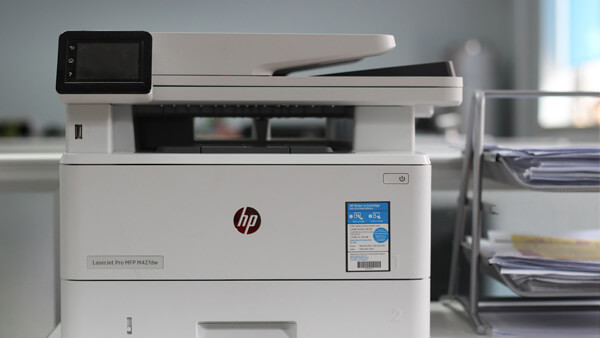
When choosing the right hardware for your business, the choices can sometimes feel overwhelming and endless.
Our expertise means that we can help to determine the right solutions for your business.
We offer access to all supply chains, including Hewlett-Packard, Dell and Cisco.
Time efficient
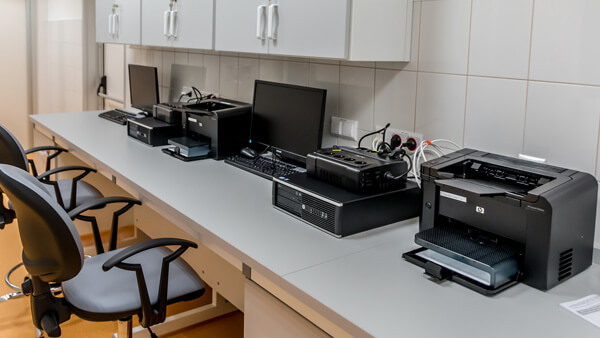
Our services mean that you or your employees will not have to spend time evaluating multiple solutions. We have the technical experience and knowledge to provide fast answers and deployments.
We will spend time getting to know and understand what you are looking for, so we can provide speedy solutions.

Optimise productivity
Businesses change all the time, and product development is rapid. Many companies do not realise the productivity and efficiency that are being lost when they are using outdated technology.
There are countless benefits to upgrading your hardware, including avoiding wasted time and making your operations more efficient, improving network security, easier maintenance and IT support, and leading to improved communications.
